
Announcement topics
Announcement topics let your contacts choose which types of announcements they want to receive. Instead of a single, all-or-nothing unsubscribe, topics give your audience granular control over their email preferences.
For example, a SaaS product might define topics like “Product updates”, “Security alerts”, and “Promotions”. A contact could unsubscribe from promotions while continuing to receive security alerts.
Topics are used exclusively with Announcements. Transactional emails sent through the API and automation-triggered emails are not affected by topic preferences.
How Topics Work with Unsubscriptions
SendStreak uses a three-layer unsubscribe model:
- Fully unsubscribed - The contact has opted out of all announcements. They will not receive any announcement emails, regardless of topic.
- Topic-specific unsubscription - The contact has opted out of one or more specific topics but still receives announcements in other topics.
- Subscribed - The contact receives all announcements.
When you create an announcement and assign a topic to it:
- Contacts who are fully unsubscribed are excluded.
- Contacts who have unsubscribed from that specific topic are also excluded.
When you create an announcement without a topic:
- Only contacts who are fully unsubscribed are excluded.
- Topic-specific unsubscriptions have no effect.
If you don’t use topics, contacts who click the unsubscribe link won’t have any granular options - their only meaningful choice is to unsubscribe from all announcements entirely. By defining topics, you give contacts a way to opt out of specific content types while staying subscribed to others, which typically results in fewer full unsubscriptions.
Managing Topics
To manage your announcement topics, go to Settings → Announcement topics.
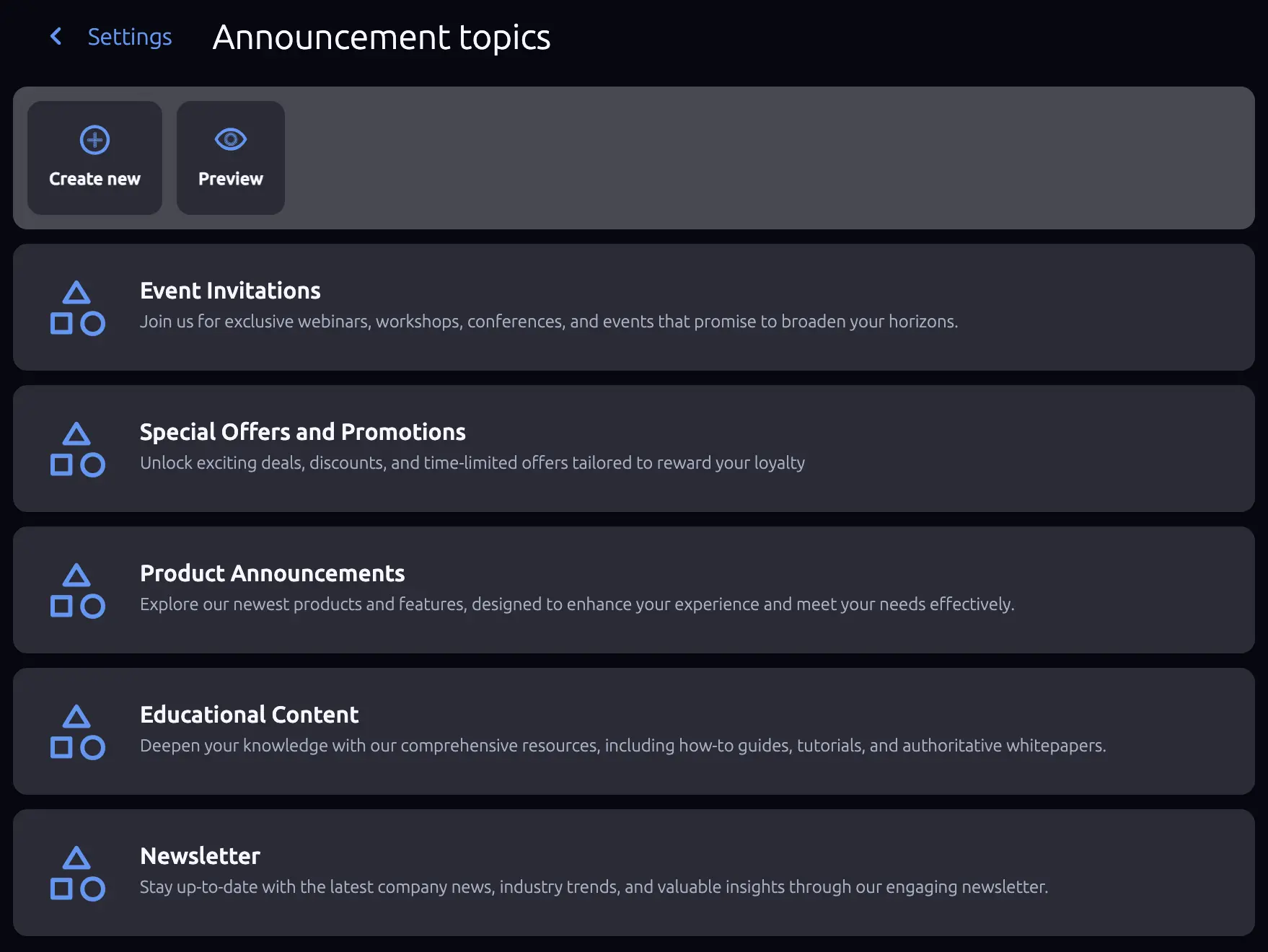
Creating a Topic
Click Create new to add a new topic. Each topic has two fields:
- Name (required) - A descriptive name for the topic (e.g., “Product updates”, “Weekly digest”).
- Description (optional) - Additional context about what the topic covers. This description is shown to contacts on the unsubscribe preferences page.
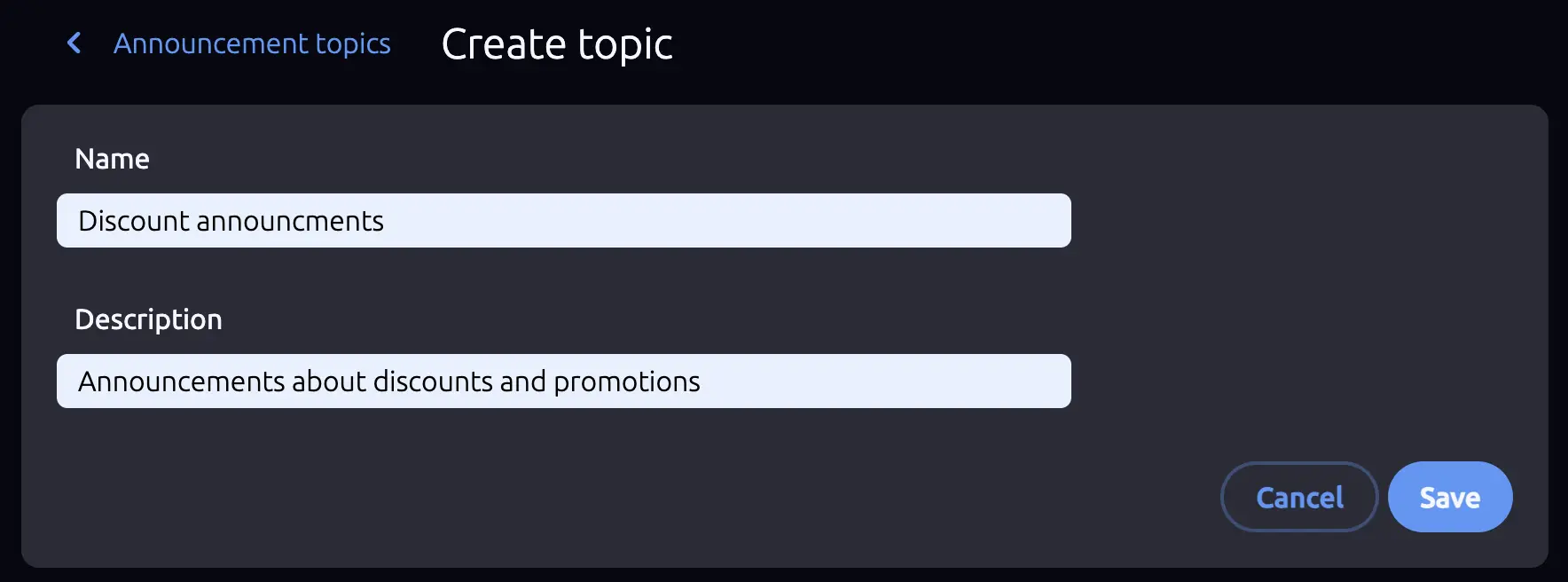
Editing and Deleting Topics
Click any topic in the list to edit its name or description. You can also delete a topic from the edit screen. Deleting a topic removes it from any announcements that reference it.
Unsubscribe Preferences Page
SendStreak automatically generates a public-facing unsubscribe preferences page for your workspace. This page lists all your topics and lets contacts manage their preferences.
Click the Preview button on the topics list screen to see how your unsubscribe preferences page looks.
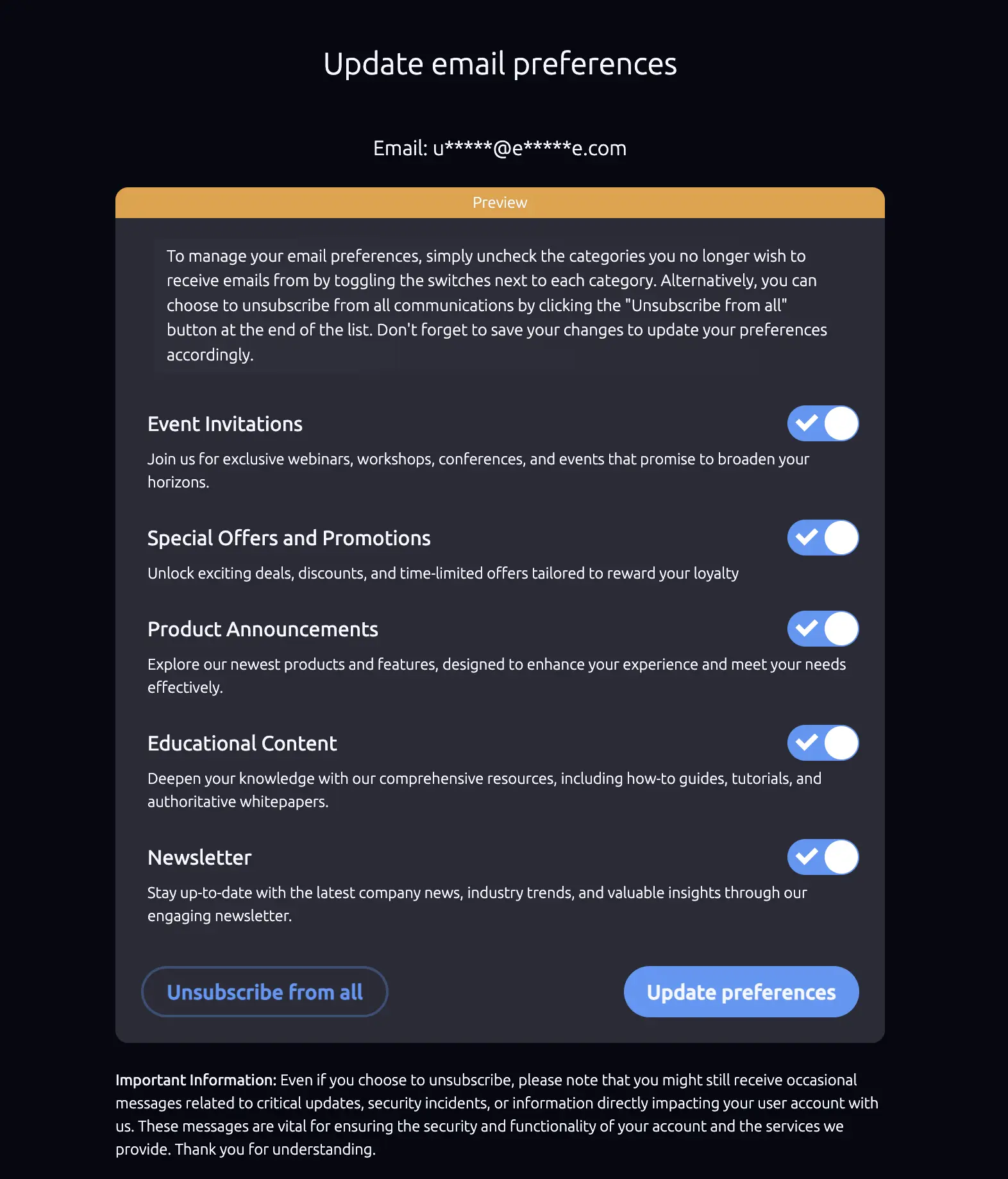
When a contact clicks an unsubscribe link in an announcement email, they are directed to this page where they can:
- Unsubscribe from individual topics
- Unsubscribe from all announcements entirely
The unsubscribe preferences page uses your workspace name and the topic names and descriptions you define. Make sure these are clear and user-friendly.
List-Unsubscribe Header
In addition to the in-body unsubscribe link (via the {{ unsubscribe_link }} template variable), SendStreak automatically adds a List-Unsubscribe header to all announcement emails. This header is recognized by major email clients like Gmail, Outlook, and Apple Mail, which display a native unsubscribe button at the top of the message.
The header includes two unsubscribe methods:
- An HTTPS link to the unsubscribe preferences page
- A mailto link for email-based unsubscribe
This behavior is automatic for all announcements - no configuration is required. Transactional emails and automation-triggered emails do not include this header.
Try SendStreak for Free now!