
Audience
The Audience screen is where you view, search, and manage your contacts.
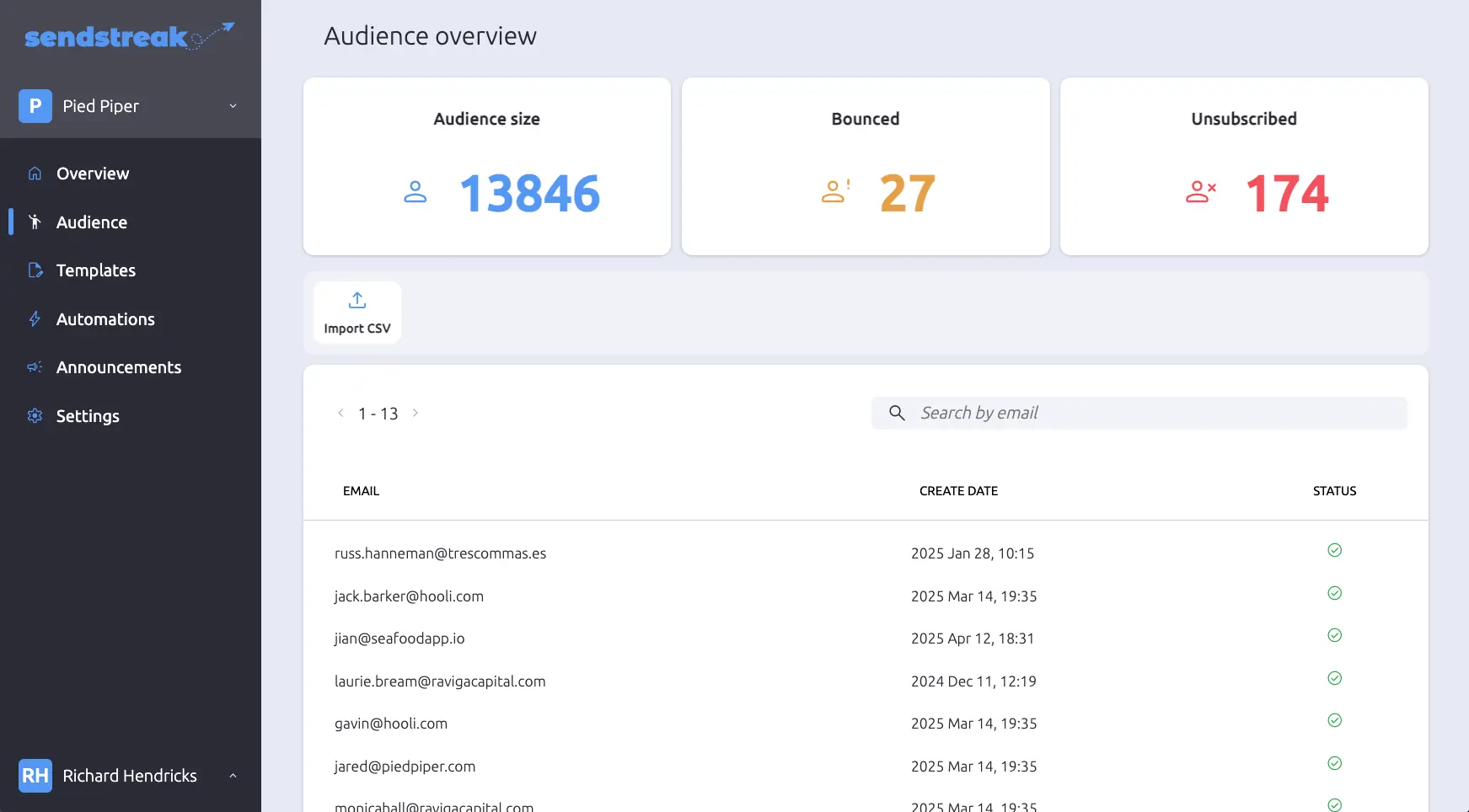
Audience overview
The top widgets give you a quick summary of your audience’s size and health.

-
person Audience size: The total number of contacts. SendStreak doesn’t charge based on contact count, so the bigger your audience the better.
-
person_alert Bounced: Contacts that have experienced a hard bounce. SendStreak automatically stops sending to these contacts to protect your sender reputation.
-
person_cancel Unsubscribed: Contacts who have fully unsubscribed from all announcement emails or partially unsubscribed from specific topics. Both are combined into this count.
Contact list
The contact list displays all contacts in a table with three columns: Email, Create date, and Status.
Use the search bar to find contacts by email address. Click any column header to sort the list. The table is paginated at 50 contacts per page.
Each contact shows a status icon:
- check_circle Active. No issues, contact receives all emails.
- error Bounced. Email delivery failed permanently.
- cancel Unsubscribed. Contact opted out of all announcement emails.
- cancel Partially unsubscribed. Contact opted out of specific announcement topics but still receives others.
Contact profile
Click any contact row to open the contact profile.
Contact details
The top section displays the contact’s email address (read-only) and all custom attributes. Each attribute shows its slug, type, and current value. Attributes are managed through the API or CSV import and cannot be edited in the UI.
Emails sent
Below the contact details, you’ll find a paginated list of all emails sent to the contact. Each entry shows the date, subject, and status of the message.
Click any message to expand its full details: from, to, subject, template slug, type, status, and status reason. A full email preview is included in the expanded view.
Use the search bar to filter messages by subject, content, or other fields.
Contact actions
Delete contact
Permanently removes the contact and all associated data, including attributes, events, and message history. This action cannot be undone.
Unbounce contact
Only available for contacts in a bounced state. Removes the bounce flag so the contact can receive emails again.
Use this with caution. Only unbounce a contact if you have confirmation that the email address is valid and ready to receive messages. Sending to invalid addresses can damage your sender reputation.
Importing contacts
Importing contacts is useful for onboarding and for bulk-adding contacts from external systems. SendStreak supports importing from CSV files with headers.
To start, click the Import CSV button on the Audience screen and select your file.
Supported formats
SendStreak accepts CSV files using either comma or semicolon delimiters.
Column settings
Before importing, you can review and adjust column settings on the import screen.
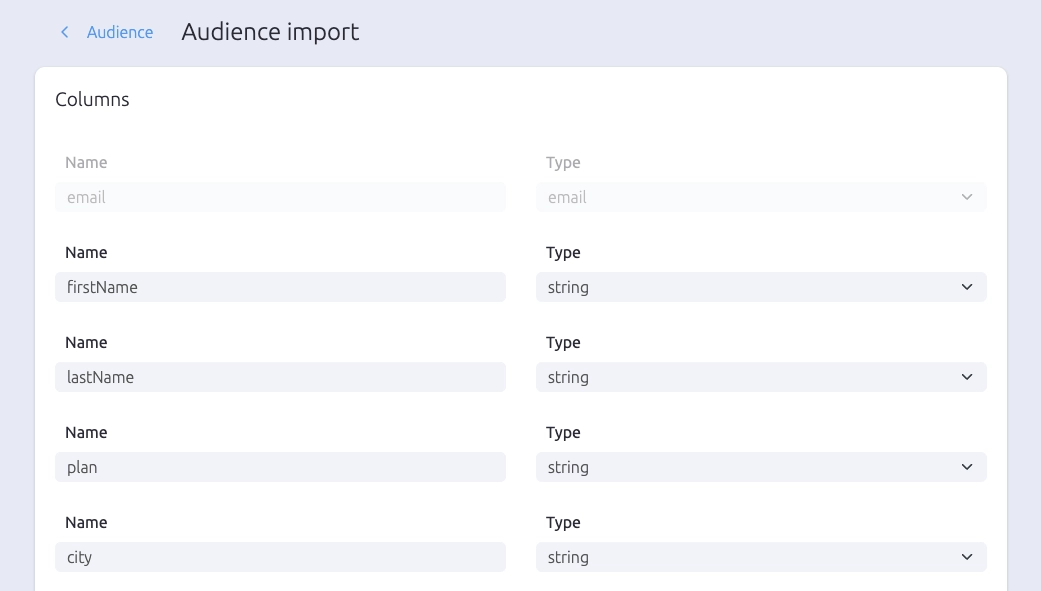
SendStreak automatically detects each column’s data type: boolean, number, date, email, or string. You can override the detected type manually. The email column is auto-detected and locked - it cannot be changed or removed.
Column slug names are editable (except for the email column). Slugs are the attribute identifiers used in the API and templates.
Validation checks run automatically. SendStreak flags duplicate column names, a missing email column, and empty data before you can proceed.
Preview and import
Below the column settings, a preview table shows the parsed data.
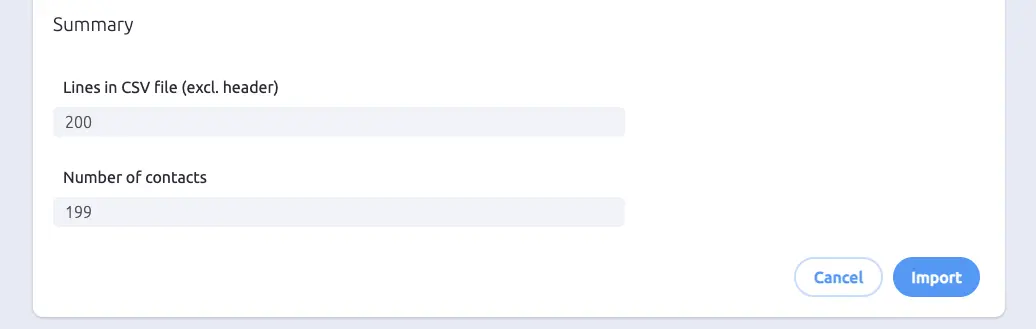
If the contact count is unexpectedly low, common causes include:
- The email column value is missing or not a valid email address.
- SendStreak could not identify an email column in your file.
- The contact is a duplicate based on email address.
Review the preview carefully, then click Import to begin. A progress bar with a percentage indicator tracks the import. You can stop the import at any time.
Keep the SendStreak window open during the import. Large files may take longer to process.
Importing the same file twice will not create duplicate contacts. If a contact already exists, the new attributes are merged into the existing contact record.
Managing contacts through the API
Contacts can also be managed programmatically through the Contacts REST API. The API supports creating, updating, and deleting contacts and their attributes.
SDKs are available for common languages. See the Contacts API documentation for endpoints, examples, and integration details.
Try SendStreak for Free now!