
Email servers
Why Do I Need an Email Server?
SendStreak is a bring-your-own-server email platform. That means you provide the email server, and we handle the logic and automation. This lets you keep your email costs low while avoiding the need to build complex email infrastructure within your own application - saving you valuable development time.
There are two main ways to get started:
- Connect an existing email server: If your company already uses an email provider - like Microsoft Exchange, AWS SES, or Google Workspace - you can link that server to SendStreak and put any unused capacity to good use. A major advantage of this approach is that your domain’s DNS records for SPF, DKIM, and DMARC are likely already configured, so you can start sending right away.
- Set up a dedicated email server: Build and maintain your own email server and plug it into SendStreak to take full control over your sending reputation and deliverability. This is usually the most cost effective solution. Keep in mind that you’ll also need to configure SPF, DKIM, and DMARC DNS records for your sending domain to ensure proper authentication and deliverability.
Once connected, your server becomes part of a complete email platform - similar to Mailchimp or MailerSend - but without the high costs of shared infrastructure. Shared platforms distribute the reputation burden across all users, which often penalizes responsible senders. With SendStreak, your server reputation is yours alone, so you’re not affected by bad actors.
How to Add Email Servers
To connect an email server, log in to your SendStreak account and go to Settings → Email Servers, or click here: Email Server Settings.
Choose a Service Type
SendStreak connects to email servers using the standard SMTP protocol. To make setup easier, we provide presets for popular services:
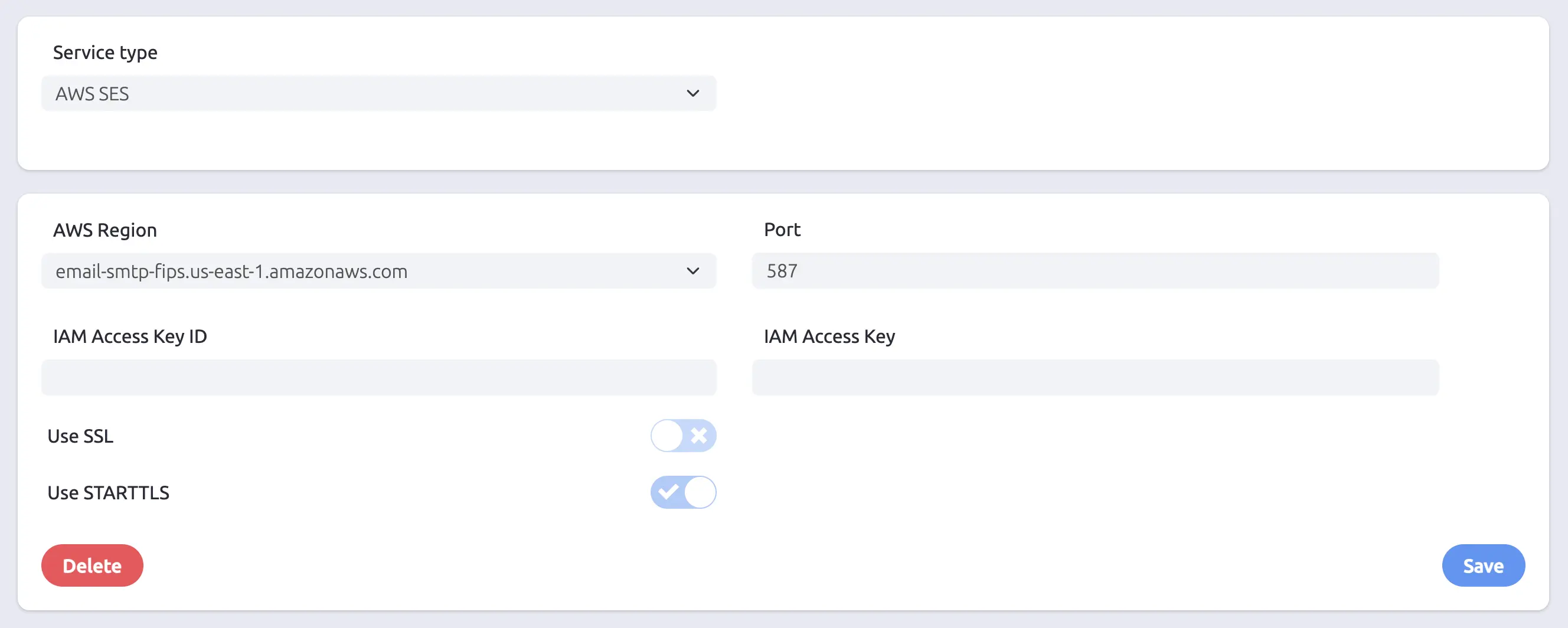
- AWS SES - select your region from 21 available SMTP endpoints; host and port are pre-filled automatically. See our AWS SES integration guide for step-by-step setup instructions.
- Gmail - uses App Password authentication (requires a Google App Password, not your regular account password)
- Mailchimp - connects via Mandrill SMTP
- Postmark - uses your Server API token as both the username and password
- TurboSMTP
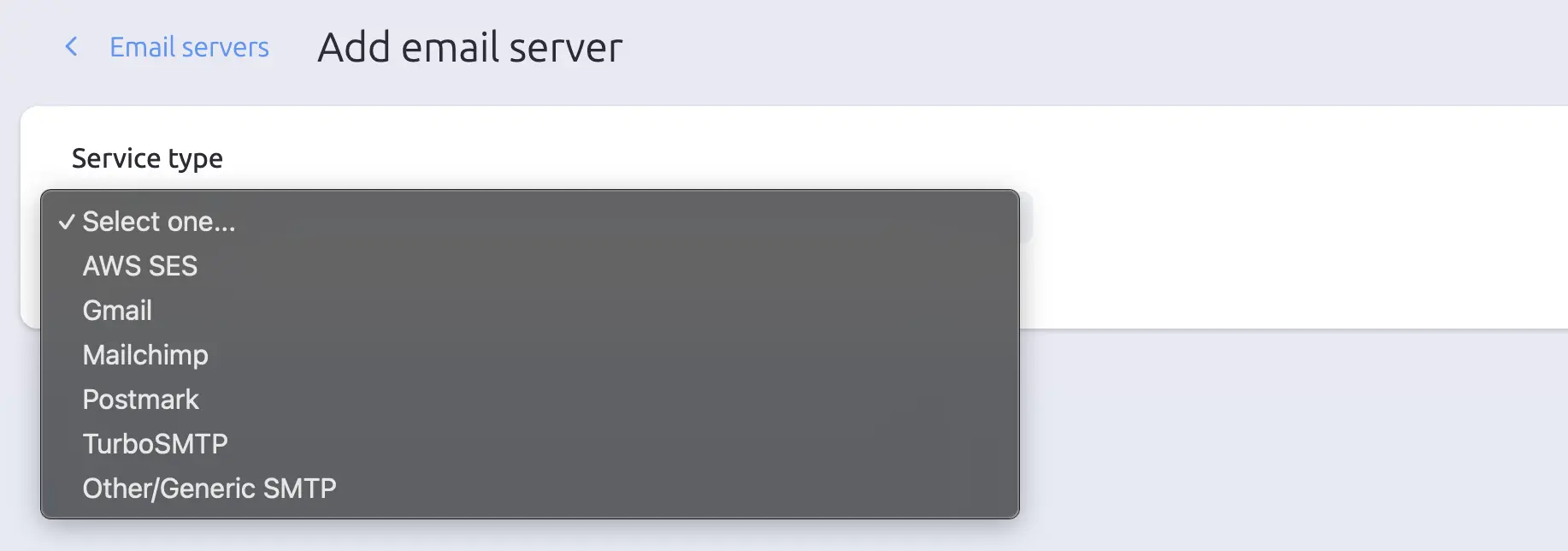
For these providers, all necessary connection parameters - like host, port, and encryption settings - are pre-filled. Just enter your credentials and you’re ready to go.
Other popular providers - like Maileroo - work with the Other / Generic SMTP option described below.
Generic SMTP Setup
If you’re using a custom email server or want more control, choose the Other / Generic SMTP option. This allows you to manually configure all required settings.
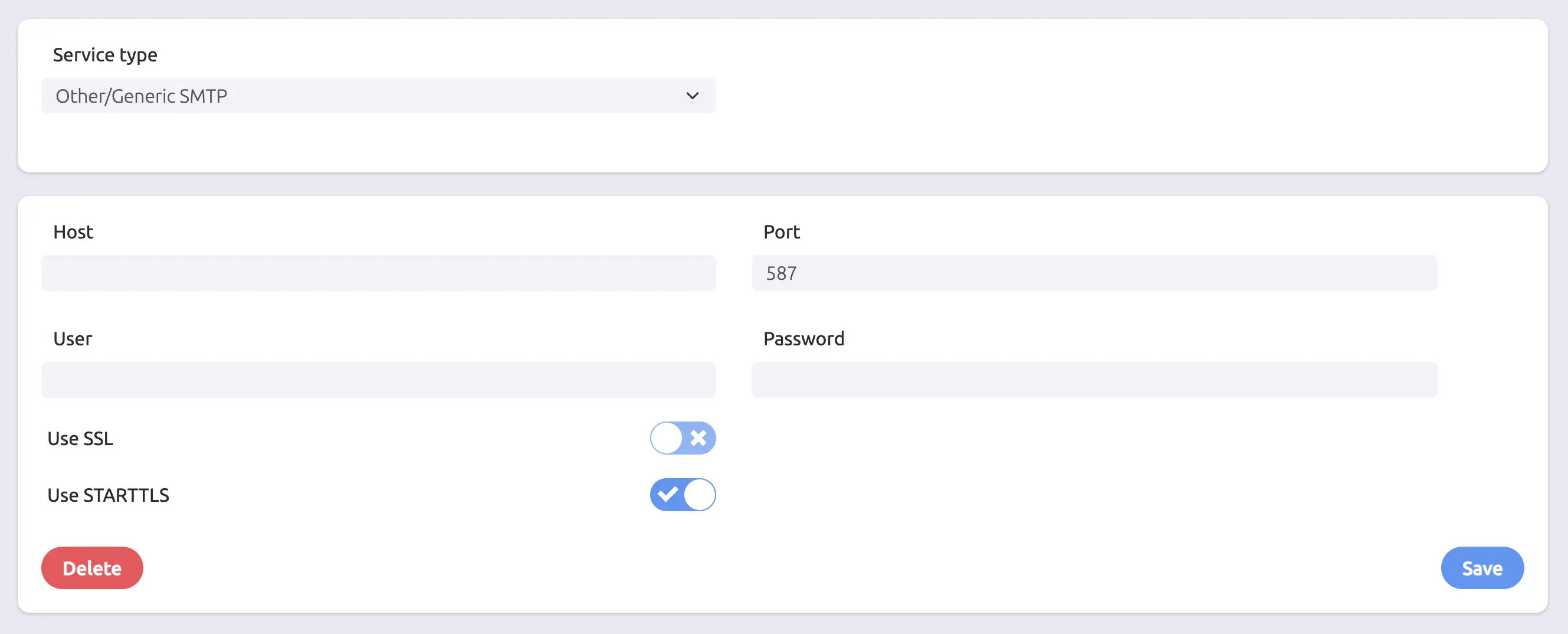
- Host: The SMTP server address
- Port: Common ports include 25, 465, and 587
- Username & Password: Your SMTP login credentials
- Use SSL: Enables SSL for encrypted connections
- Use STARTTLS: Uses STARTTLS to upgrade to a secure connection after initiating the session
Connection Validation
When you click Save, SendStreak validates the connection by establishing a real SMTP session and authenticating with the credentials you provided. If the connection or authentication fails, you’ll see a specific error message explaining the issue - for example, incorrect credentials, an unreachable host, or a TLS mismatch.
Why Add Multiple Email Servers?
SendStreak supports multiple email servers, which opens up powerful optimization strategies:
- Distribute costs across various services (and even take advantage of their free tiers)
- Optimize deliverability by assigning high-priority messages (like signup verifications) to premium providers, and lower-priority messages (like activity updates) to more cost-effective services
This gives you fine-grained control over your cost-to-delivery ratio - something traditional platforms don’t offer.
To do this, simply:
- Add your different email servers in Settings.
- Assign a preferred email server to each template.
SendStreak will then automatically use the assigned server when sending that email type.
If you haven’t set a preferred server for a template, SendStreak will choose one of your available servers at random.
Switching Email Providers
Switching providers is seamless with SendStreak. If you’re experiencing issues with an existing service (like delivery problems or rising costs), simply:
- Add the new email service to your account.
- Update your templates to use the new service where needed.
- Remove the old server when you’re ready.

No downtime. No interruptions. Just smooth, controlled transitions - exactly how it should be.
Deleting an Email Server
When you delete an email server, SendStreak automatically removes it as the preferred server from any templates that referenced it. Those templates will fall back to random server selection (or whichever server you reassign).
If you delete your last remaining email server, your account returns to sandbox mode until a new server is connected.
Try SendStreak for Free now!