
Team management
The Team screen lets you invite colleagues to your workspace so they can collaborate on templates, automations, announcements, and settings.
To manage your team, go to Settings → Team.
Team Member List
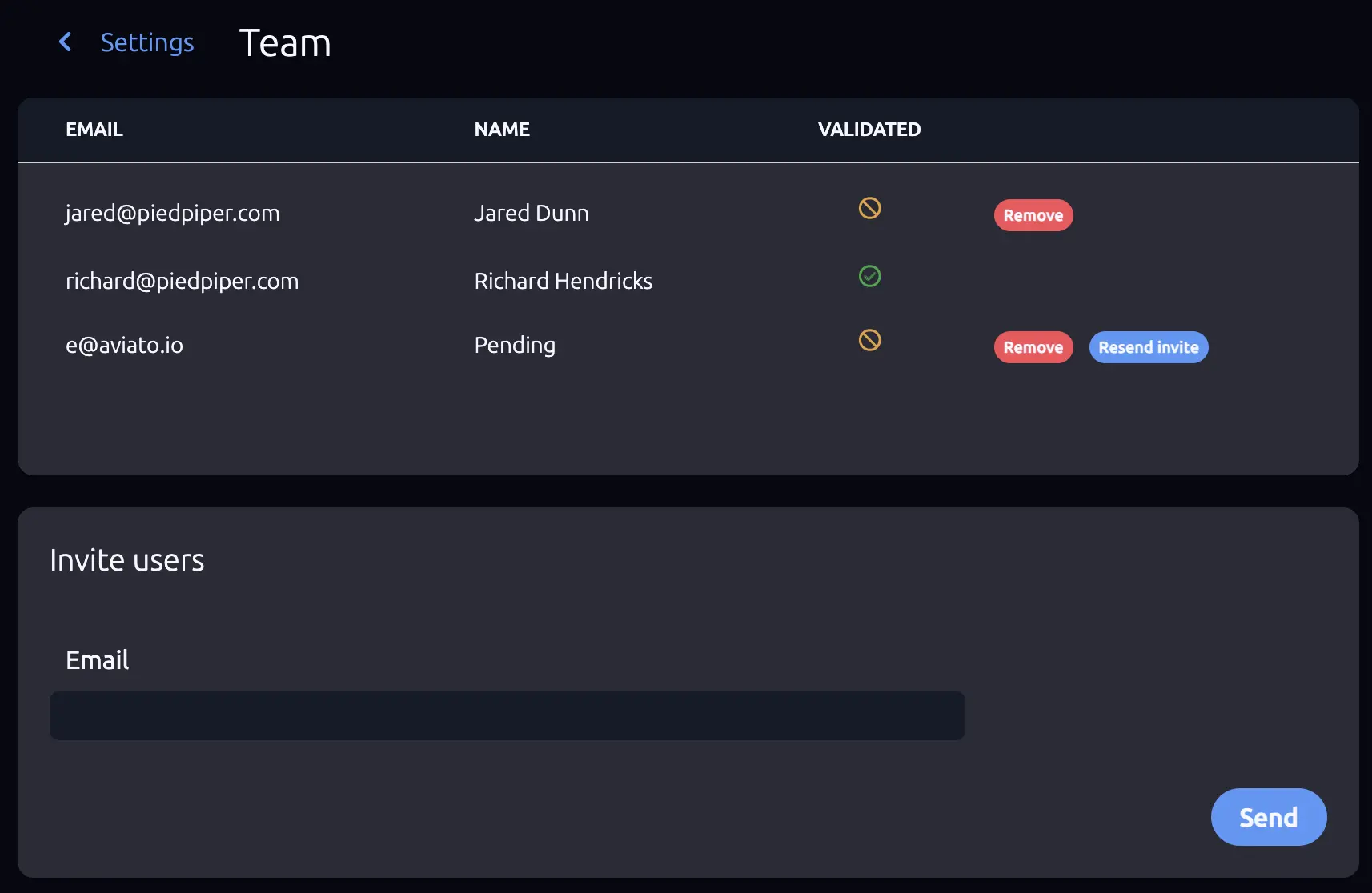
The team screen displays all members in a table with the following columns:
- Email - The member’s email address.
- Name - The member’s display name. Shows “Pending” for users who haven’t accepted their invitation yet.
- Status - A validation indicator:
- check_circle Validated - The user has accepted the invitation and verified their email.
- block Pending - The invitation has been sent but not yet accepted.
Inviting Team Members
To invite a new member:
- Enter their email address in the invitation field.
- Click Send.
The invited user receives an email with a link to join the workspace. Until they accept, they appear in the list with a “Pending” status.
Managing Members
Resend Invitation
For pending members who haven’t accepted yet, you can click Resend invite to send the invitation email again.
Resend requests are rate-limited to prevent abuse. If you’ve recently sent an invitation, wait a moment before trying again.
Remove Member
Click Remove to revoke a member’s access to the workspace. This works for both active and pending members.
You cannot remove your own account from the workspace.
Team Members and Sandbox Mode
When your workspace is in sandbox mode (no email server connected yet), you can only send emails to validated team members. This means:
- Only team members who have accepted their invitation and verified their email address can receive sandbox emails.
- Pending members cannot receive emails until they complete their signup.
- When you invite a new user, they are automatically validated upon accepting the invitation - no separate email verification step is required. This only applies when the invited user signs up through the invite link sent to their email. If they sign up independently (without using the invite link), they will need to verify their email address separately. Once verified, they are automatically added to all workspaces they were invited to.
This makes team members useful beyond just collaboration. By inviting colleagues during sandbox mode, you expand the list of people who can receive test emails, allowing your team to review and evaluate email templates and automations together before connecting a production email server.
Try SendStreak for Free now!Once you connect an email server, sandbox restrictions are lifted and you can send to any recipient.