
Templates
What Are Templates?
Templates in SendStreak allow you to define the structure and appearance of your emails while keeping the content dynamic. Instead of hardcoding email content directly in your code, you can use templates to create reusable email frameworks where placeholders are dynamically replaced with actual values when an email is sent. This approach keeps your code clean, makes updates easier, and allows non-developers to modify email content without changing the underlying application logic. Think of a template as a reusable email framework where placeholders are replaced with actual values when an email is sent.
Example Template
Hello {{ name }},

Thank you for signing up to {{ app }}!

Best regards,
{{ sender }}
When sending an email, you can provide values for the placeholders (denoted by {{ ... }}). For example:
{
  "name": "Gavin",
  "app": "Pied Piper",
  "sender": "Richard"
}
This would result in the following email:
Hello Gavin,

Thank you for signing up to Pied Piper!

Best regards,
Richard
Template Editor
The template editor provides three tabs for composing and previewing your email content.
Visual Editor
The Visual editor is a WYSIWYG rich text editor. It includes a formatting toolbar with controls for bold, italic, text colors, bulleted and numbered lists, links, images, and tables. Use this tab for quick edits without writing HTML.
HTML Editor
The HTML editor is a code editor with syntax highlighting. It gives you direct access to the underlying HTML so you can fine-tune the markup and structure of your email.
Switching from the HTML editor back to the Visual editor triggers a conversion warning. The conversion may alter formatting, so review the result after switching.
Preview
The Preview tab renders your email content and lets you check how it will appear to recipients. You can switch between Gmail, Outlook, and Apple Mail preview styles to see how your email renders across different email clients.
Variable Insertion
Fields that support variable insertion display a code icon button. Click it to open the variable selector. The selector lists all contact attributes defined in your account, plus a built-in Unsubscribe link variable.
In the Visual editor, if you select text before inserting the Unsubscribe link variable, the selected text is automatically wrapped as a hyperlink.
Variable insertion is supported in the following fields: From name, To name, Subject, CC, BCC, and the template body.
You can also type variable syntax manually using
{{ variable_name }}in any field that supports variables.
Send Test Email
Click Send a test email to open the test email dialog. Enter a recipient email address to send a rendered version of the template.
In sandbox mode, the recipient defaults to your own email address and cannot be changed.
If the template contains variables, the dialog displays input fields for each one. Fill them in to preview how the email renders with actual data. The test email is sent immediately using your configured email server.
Working with Variables
SendStreak templates use a subset of the Mustache templating language, making them simple yet powerful. Below are key aspects of working with variables.
Basic Variables
A variable placeholder, such as {{ name }}, is replaced with the corresponding value from the provided data. If no matching key exists, the placeholder is left empty.
HTML Escaping and Unescaping
By default, all variables are HTML-escaped to prevent security risks like cross-site scripting (XSS). To render raw HTML, use triple braces {{{name}}} or the & symbol:
{{{ <b>Compression is awesome</b> }}} or {{& <h1>I'm pivoting!</h1> }}
Sections (Conditional Blocks)
Sections help in conditionally rendering content or iterating over lists.
Boolean Conditions
If a section variable evaluates to true, the enclosed block is displayed; if false, it is omitted.
Template:
{{#show_section}}
I don't want to live in a world where
someone else is making the world
a better place better than we are.
{{/show_section}}
Variables:
{
  "show_section": true
}
Lists (Iterating Over Data)
If a section variable is a list, the enclosed block is repeated for each item.
Template:
{{#team_members}}
- {{name}}
{{/team_members}}
Variables:
{
  "team_members": [
    { "name": "Richard" },
    { "name": "Jared" },
    { "name": "Gilfoyle" }
  ]
}
Output:
- Richard
- Jared
- Gilfoyle
When iterating over an array of strings, use . to refer to the current item.
Template:
{{#team_members}}
* {{.}}
{{/team_members}}
Variables:
{
  "team_members": [ "Richard", "Jared", "Gilfoyle", "Dinesh" ]
}
Output:
* Richard
* Jared
* Gilfoyle
* Dinesh
Inverted Sections
An inverted section ({{^section}}) renders content only if the key is false, null, or empty.
Template:
{{#disrupt_win}} Congratulations! {{/disrupt_win}}
{{^disrupt_win}} Nah, maybe next time {{/disrupt_win}}
Variables:
{
  "disrupt_win": true
}
Output:
Congratulations!
Template Fields
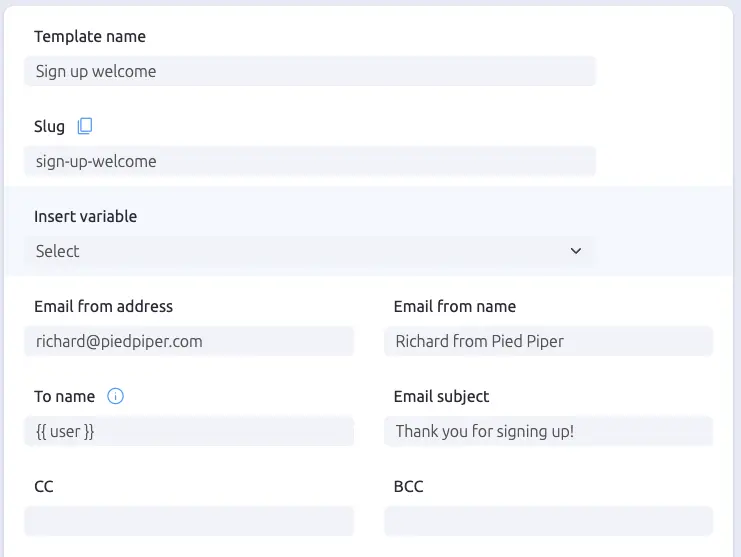
When creating a template, you need to fill in the following fields:
-
badge Template Name: A descriptive name to help you identify your template for future edits.
-
link Slug: A technical identifier used in API requests. It is auto-generated from the template name for new templates. Click the lock icon to manually edit the slug. Click the copy icon to copy it to the clipboard. The slug must be unique across the workspace.
-
alternate_email Email From Address: The sender’s email address.
-
person Email From Name: A display name for the sender that most email clients will show instead of the email address.
-
person To Name: The recipient’s name, similar to the sender name. This field supports variables.
-
subject Email Subject: The subject line of the email. This field supports variables.
-
group CC and BCC: Optional fields for sending a copy or hidden copy of the email.
-
edit_document Template Content: The editor supports both WYSIWYG and HTML source editing.
-
dns Override Preferred Email Server: Assign a specific email server to this template (if you have multiple servers configured).
Best Practices
Email From and To Name
To improve email deliverability, always set a sender and recipient name (preferably using variables). Email spam filters often check these fields to determine whether the sender knows the recipient, influencing their decision on whether an email should be marked as spam.
Overriding the Preferred Email Service
If you use multiple email services, this setting lets you optimize delivery. For example, you can use a cost-effective service for non-critical messages (e.g., system notifications) and a premium service for high-priority emails (e.g., account verification emails). This helps balance cost efficiency with reliable delivery.
