How to use webhooks
Webhooks keep your application in step with what happens to your contacts in SendStreak. When a contact hard-bounces, reports an email as spam, unsubscribes or is deleted, SendStreak sends a signed HTTPS POST request to a URL you choose. Your app can then stop emailing that address from its own code, flag the account for your support team, or update its CRM.
This guide covers setting up a webhook, the request SendStreak sends, how to verify its signature, and what happens when your endpoint does not answer.
Events
Pick the events you need. Each one tells you the contact’s email address.
| Event | Setting | When it fires |
|---|---|---|
contact.bounced | Contact bounced | A message to the contact hard-bounced: a permanent SMTP 5xx failure. Soft bounces do not fire it. |
contact.complained | Contact reported spam | The recipient’s mailbox provider reported a spam complaint. It fires once per contact. |
contact.unsubscribed | Contact unsubscribed | The contact unsubscribed from all announcements or from one topic. The request does not say which. |
contact.deleted | Contact deleted | The contact was deleted on the dashboard or through the API. |
Set up a webhook
- Go to Settings → Webhooks.
- Enter the Webhook URL. It must be an
https://URL on a public host. Each workspace has one webhook URL. - Choose the Authentication type: None, Basic (a username and password) or Bearer (a token). SendStreak sends it in the
Authorizationheader of every request. - Select at least one event.
- Click Save.
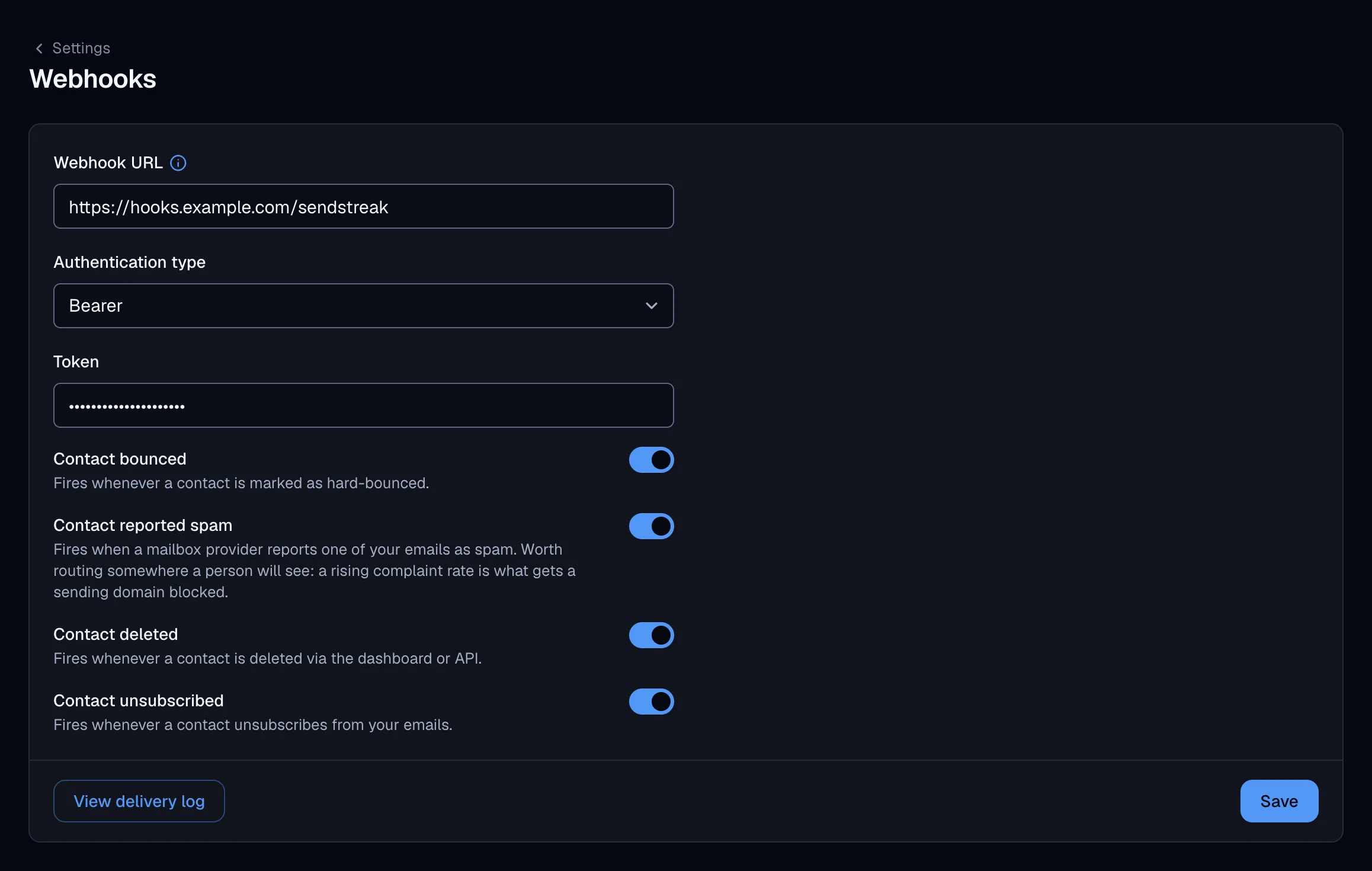
After each save, the screen shows the Signing secret. Click it to copy it, and store it with your receiver. It is not shown again when you come back to the page. If you lose it, click Rotate signing secret to get a new one.
The same settings are available through the API: Set the webhook configuration.
The request
SendStreak sends a POST request with a JSON body:
POST /sendstreak HTTP/1.1
Content-Type: application/json
X-SendStreak-Event: contact.bounced
X-SendStreak-Signature: ts=1791806400;h1=5f2b9c...
Authorization: Bearer <your token>

{"accountId":"65f3a1...","data":{"email":"[email protected]"},"event":"contact.bounced","timestamp":"2026-10-13T10:40:00.000Z"}
eventrepeats theX-SendStreak-Eventheader.data.emailis the contact’s address. Look the contact up through the Contacts API if you need its attributes.timestampis the time of this delivery attempt, not of the event itself.
Verify the signature
Every request carries an X-SendStreak-Signature header in the form ts=<unix seconds>;h1=<signature>. The signature is an HMAC-SHA256 hex digest of <ts>:<raw body>, keyed with your signing secret as it is (do not decode it).
To verify a request:
- Read the raw request body, before any JSON parsing.
- Compute the HMAC-SHA256 of
ts + ":" + rawBodywith your signing secret. - Compare it with
h1in constant time. - Reject requests whose
tsis more than a few minutes old, so a captured request cannot be replayed later.
In Node.js:
import crypto from 'node:crypto';

function isValidSendStreakRequest(rawBody, signatureHeader, signingSecret) {
    const parts = Object.fromEntries(signatureHeader.split(';').map(part => part.split('=')));
    const expected = crypto.createHmac('sha256', signingSecret).update(`${parts.ts}:${rawBody}`).digest('hex');
    const fresh = Math.abs(Date.now() / 1000 - Number(parts.ts)) < 300;

    return fresh
        && typeof parts.h1 === 'string'
        && parts.h1.length === expected.length
        && crypto.timingSafeEqual(Buffer.from(parts.h1), Buffer.from(expected));
}
Rotating the secret. Rotate signing secret replaces the secret at once. Deliveries that were already queued, and their retries, still use the old one. Accept both secrets for a short while after you rotate.
Retries and the delivery log
A delivery succeeds when your endpoint answers with any 2xx status within 10 seconds.
- Retried: a
408, a429, any5xx, a timeout, or a network error. SendStreak tries up to 3 times in total, in quick succession. - Not retried: any other status, including redirects (
3xx) and most4xxanswers.
After the last failed attempt, the delivery shows as Failed. Because the retries come quickly, an endpoint that is down for longer misses them. Answer with a 2xx as soon as you have stored the event, and do the work afterwards.
To see every delivery, click View delivery log on the webhook settings. The log shows the date, event, URL, status and number of attempts, and you can filter by status and event. Click a row to see the payload, the response status and the first part of your endpoint’s response body.
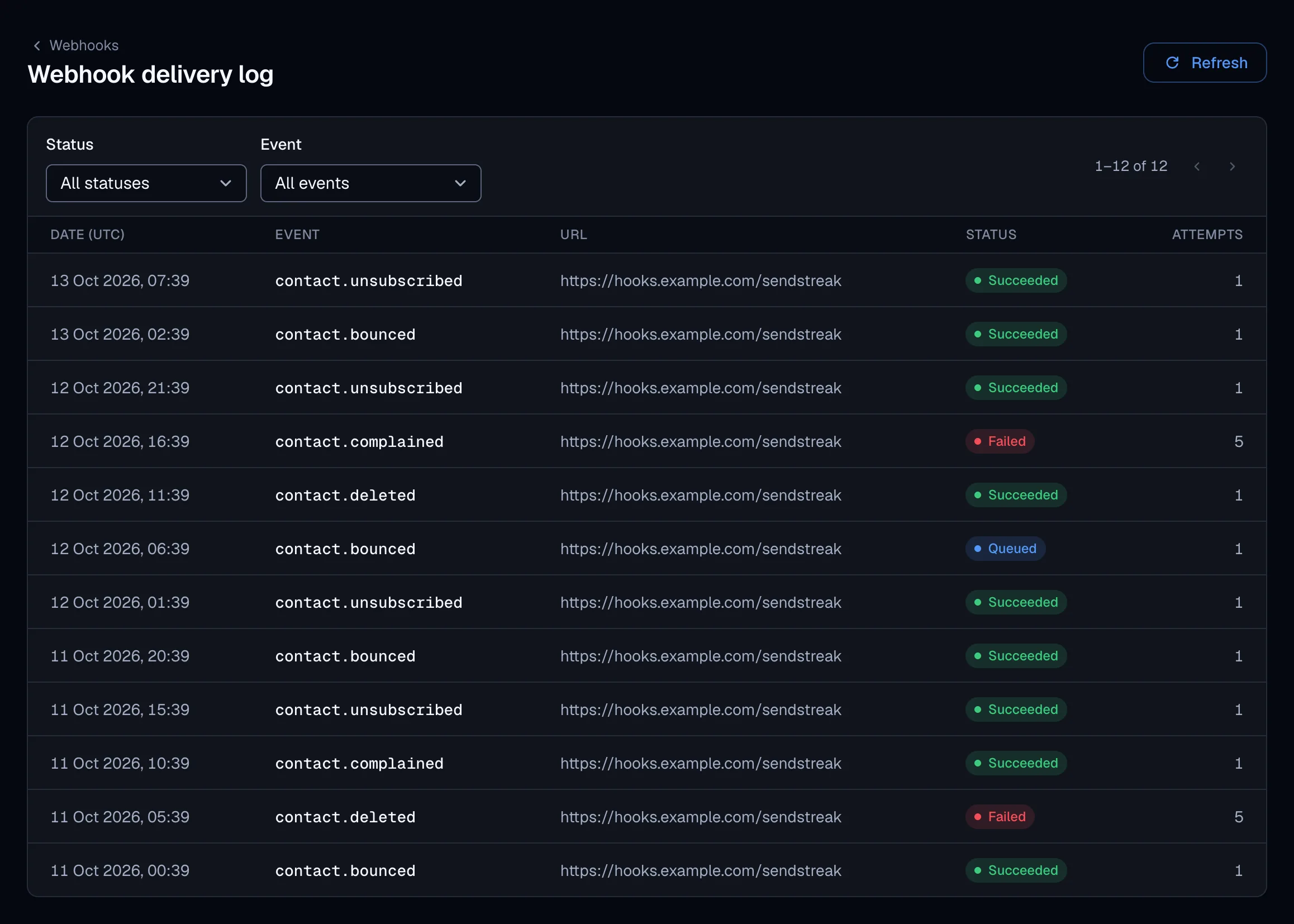
Click Retry on a failed delivery to send it again. A retry is a new delivery that uses your current webhook settings. The log keeps 90 days of history, and it is also available through the API: list webhook events and retry a webhook event.
Good practice
- Answer fast. Store the event, answer
200, then process it. - Expect duplicates. An event your endpoint processed but answered slowly is sent again. Handle the same event twice without side effects.
- Treat the email address as the key. Every event identifies the contact by address, the same key the Contacts API and your email analytics use.